本文由 简悦 SimpRead 转码, 原文地址 csdiy.wiki
CS 自学指南
Contributed by @HardwayLinka
计算机领域的知识覆盖面很广并且更新速度很快,因此保持终身学习的习惯很重要。但在日常开发和学习的过程中,我们获取知识的来源相对复杂且细碎。有成百上千页的文档手册,也有寥寥数语的博客,甚至闲暇时手机上划过的某则新闻和公众号都有可能包含我们感兴趣的知识。因此,如何利用现有的各类工具,形成一套适合自己的学习工作流,将不同来源的知识碎片整合进属于自己的知识库,方便之后的查阅与复习,就显得尤为重要。经过两年工作之余的学习后,我磨合出了以下学习工作流:

底层核心逻辑 #
一开始我学习新知识时会参考中文博客,但在代码实践时往往会发现漏洞和 bug。我逐渐意识到我参考的信息可能是错误的,毕竟发博客的门槛低,文章可信度不高,于是我开始查阅一些相关的中文书籍。
中文书籍的确是比较全面且系统地讲解了知识点,但众所周知,计算机技术更迭迅速,又因为老美在 CS 方面一直都是灯塔,所以一般中文书籍里的内容会滞后于当前最新的知识,导致我跟着中文书籍实践会出现软件版本差异的问题。这时我开始意识到一手信息的重要性,有些中文书籍是翻译英文书籍的,一般翻译一本书也要一两年,这会导致信息传递的延迟,还有就是翻译的过程中信息会有损失。如果一本中文书籍不是翻译的呢,那么它大概率也参考了其他书籍,参考的过程会带有对英文原著中语义理解的偏差。
于是我就顺其自然地开始翻阅英文书籍。不得不说,英文书籍内容的质量整体是比中文书籍高的。后来随着学习的层层深入,以知识的时效性和完整性出发,我发现 源代码 > 官方文档 > 英文书籍 > 英文博客 > 中文博客,最后我得出了一张 信息损失图:
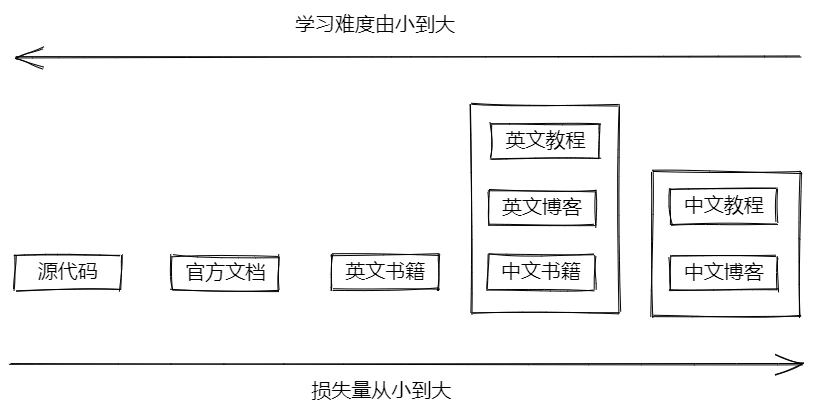
虽然一手信息很重要,但后面的 N 手信息并非一无是处,因为这 N 手资料里包含了作者对源知识的转化——例如基于某种逻辑的梳理(流程图、思维导图等)或是一些自己的理解(对源知识的抽象、类比、延伸到其他知识点),这些转化可以帮助我们更快地掌握和巩固知识的核心内容,就如同初高中学习时使用的辅导书。 此外,学习的过程中和别人的交流十分重要,这些 N 手信息同时起了和其他作者交流的作用,让我们能采百家之长。所以这提示我们学习一个知识点时先尽量选择质量更高的,信息损失较少的信息源,同时不妨参考多个信息源,让自己的理解更加全面准确。
现实工作生活中的学习很难像学校里一样围绕某个单一知识点由浅入深,经常会在学习过程中涉及到其他知识点,比如一些新的专有名词,一篇没有读过的经典论文,一段未曾接触过的代码等等。这就要求我们勤于思考,刨根究底地 “递归” 学习,给多个知识点之间建立联系。
选择合适的笔记软件 #
工作流的骨架围绕 单个知识点多参考源,勤于提问给多个知识点之间建立联系 的底层核心逻辑建立。我们写论文其实就是遵循这个底层逻辑的。论文一般会有脚注去解释一些关键字,并且论文末尾会有多个参考的来源,但是我们平时写笔记会随意得多,因此需要更灵活的方式。
平时写代码习惯在 IDE 里一键跳转,把相关的函数和实现很好地联系在了一起。你也许会想,如果笔记也能像代码那样可以跳转就好了。现在市面上 双链笔记软件 就可以很好地解决这一痛点,例如 Roam Research、Logseq、Notion 和 Obsidian。Roam Research 和 Logseq 都是基于大纲结构的笔记软件,而 大纲结构 是劝退我使用这两款软件的原因。一是 大纲结构 做笔记容易使文章纵向篇幅太长,二是如果嵌套结构过多会占横向的篇幅。Notion 页面打开慢,弃之。最终我选择了 Obsidian,原因如下:
- Obsidian 基于本地,打开速度快,且可存放很多电子书。我的笔记本是 32g 内存的华硕天选一代,拿来跑 Obsidian 可以快到飞起
- Obsidian 基于 Markdown。这也是一个优势,如果笔记软件写的笔记格式是自家的编码格式,那么不方便其他第三方拓展,也不方便将笔记用其他软件打开,比如 qq 音乐下载歌曲有自己的格式,其他播放器播放不了,这挺恶心人的
- Obsidian 有丰富的插件生态,并且这个生态既大又活跃,即插件数量多,且热门插件的 star 多,开发者会反馈用户 issue,版本会持续迭代。借助这些插件,可以使 Obsidian 达到
all in one的效果,即各类知识来源可以统一整合于一处
信息的来源 #
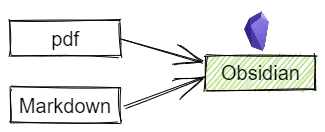
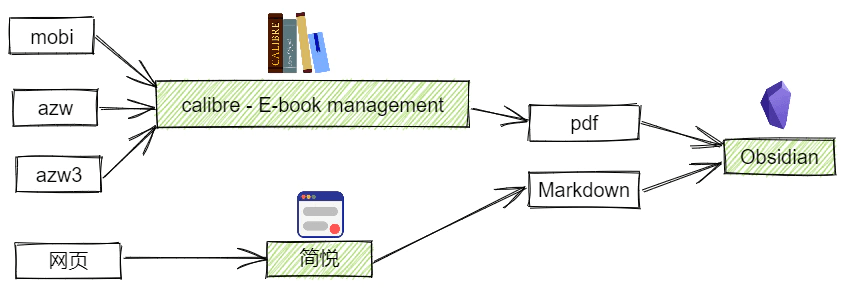
Obsidian 的插件使其可以支持 pdf 格式,而其本身又支持 Markdown 格式。如果想要 all in one,那么可以基于这两个格式,将其他格式文件转换为 pdf 或者 Markdown。 那么现在就面临着两个问题:
- 有什么格式
- 怎么转换为 pdf 或 Markdown
有什么格式 #
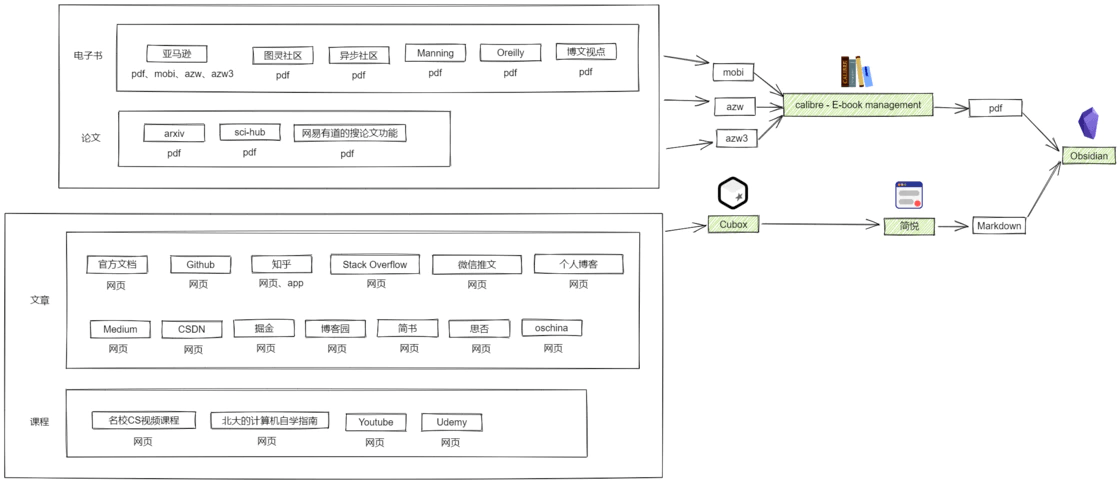
文件格式依托于其展示的平台,所以在看有什么格式之前,可以罗列一下我平时获取信息的来源:
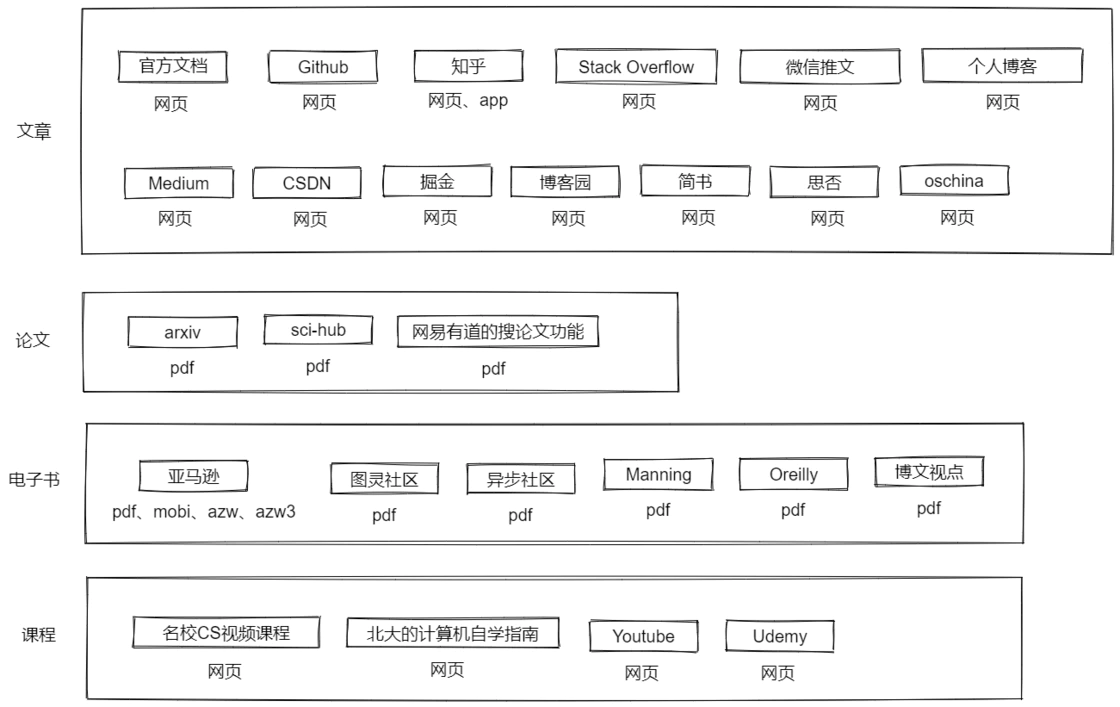
可以看到主要分为文章、论文、电子书、课程四类,包含的格式主要有 网页、pdf 、mobi、azw、azw3。
怎么转换为 pdf 或 Markdown #
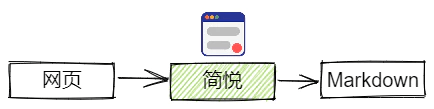
在线的文章和课程等大多以网页形式呈现,而将网页转换为 Markdown 可以使用剪藏软件,它可以将网页文章转换为多种文本格式文件。我选择的工具是简悦,使用简悦可以将几乎所有平台的文章很好地剪藏为 Markdown 并且导入到 Obsidian。
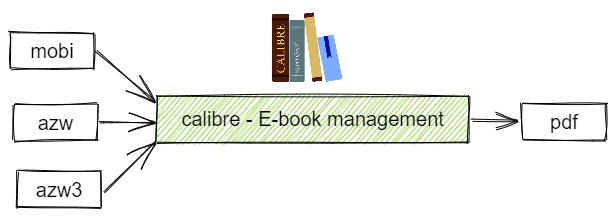
对于论文和电子书而言如果格式本身就是 pdf 则万事大吉,但如果是其他格式则可以使用 calibre 进行转换:
现在利用 Obsidian 的 pdf 插件和其原生的 markdown 支持就可以畅快无比地做笔记并且在这些文章的对应章节进行无缝衔接地引用跳转啦(具体操作参考下文的 “信息的处理” 模块)。
如何统一管理信息来源 #
对于 pdf 等文件类资源可以本地或者云端存储,而网页类资源则可以分门别类地放入浏览器的收藏夹,或者剪藏成 markdown 格式的笔记,但是网页浏览器不能实现移动端的网页收藏。为了实现跨端网页收藏我选用了 Cubox,在手机端看到感兴趣的网页时只需小手一划,便能将网页统一保存下来。虽然免费版只能收藏 100 个网页,但其实够用了,还可以在收藏满时督促自己赶紧剪藏消化掉这些网页,让收藏不吃灰。
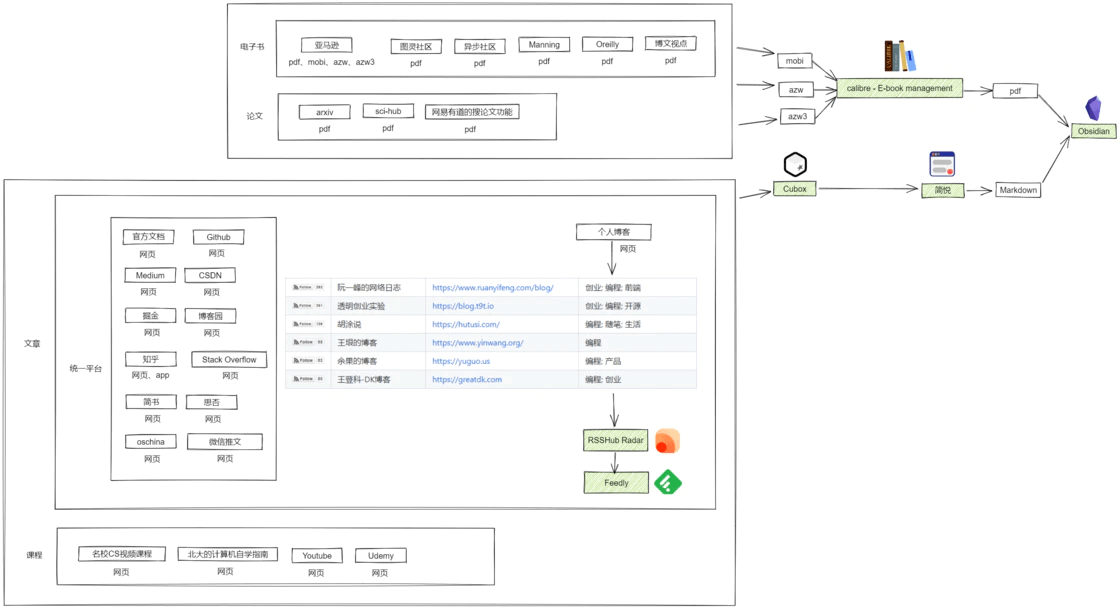
除此之外,回想一下我们平时收藏的网页,就会发现有很多并不是像知乎、掘金这类有完整功能的博客平台,更多的是个人建的小站,而这些小站往往没有移动端应用,这样平时刷手机的时候也看不到,放到浏览器的收藏夹里又容易漏了看,有新文章发布我们也不能第一时间收到通知,这个时候就需要一种叫 RSS 的通信协议。
RSS(英文全称:RDF Site Summary 或 Really Simple Syndication),中文译作简易信息聚合,也称聚合内容,是一种消息来源格式规范,用以聚合多个网站更新的内容并自动通知网站订阅者。电脑端可以借助 RSSHub Radar 来快速发现和生成 RSS 订阅源,接着使用 Feedly 来订阅这些 RSS 订阅源(RSSHub Radar 和 Feedly 在 chrome 浏览器中均有官方插件)。
到这里为止,收集信息的流程已经比较完备了。但资料再多,分类规整得再漂亮,也得真正内化成自己的才管用。因此在收集完信息后就得进一步地处理信息,即阅读这些信息,如果是英文信息的话还得搞懂英文的语义,加粗高亮重点句子段落,标记有疑问的地方,发散联想相关的知识点,最后写上自己的总结。那么在这过程中需要使用到什么工具呢?
信息的处理 #
英文信息 #
面对英文的资料,我以前是用 有道词典 来划词翻译,遇到句子的话就使用谷歌翻译,遇到大段落时就使用 deepl,久而久之,发现这样看英语文献太慢了,得用三个工具才能满足翻译这一个需求,如果有一个工具能够同时实现对单词、句子和段落的划词翻译就好了。我联想到研究生们应该会经常接触英语文献,于是我就搜 研究生 + 翻译软件,在检索结果里我最终选择了 Quicker + 沙拉查词 这个搭配来进行划词翻译。
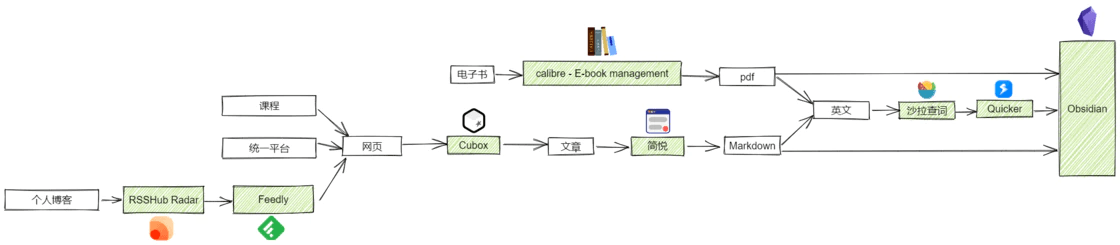
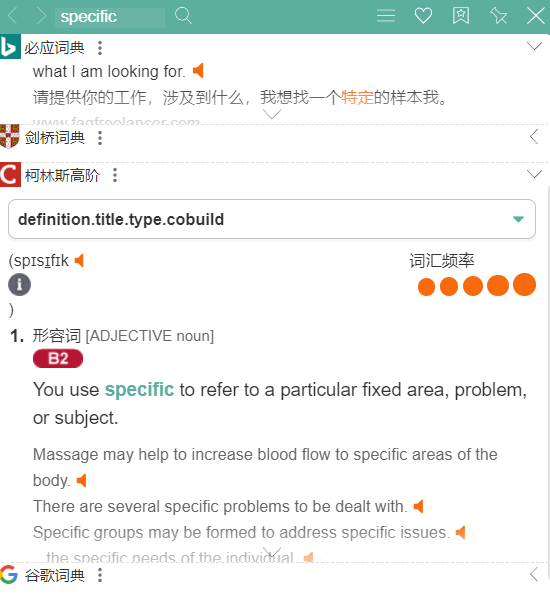
使用这套组合可以实现在浏览器外的其他软件内进行划词翻译,并且支持单词、句子和段落的翻译,以及每次的翻译会有多个翻译平台的结果。btw,如果查单词时不着急的话,可以顺便看看 科林斯高阶 的翻译,这个词典的优点就是会用英文去解释英文,可以提供多个上下文帮助你理解,对于学习英文单词也有帮助,因为用英文解释英文才更接近英语的思维。
多媒体信息 #
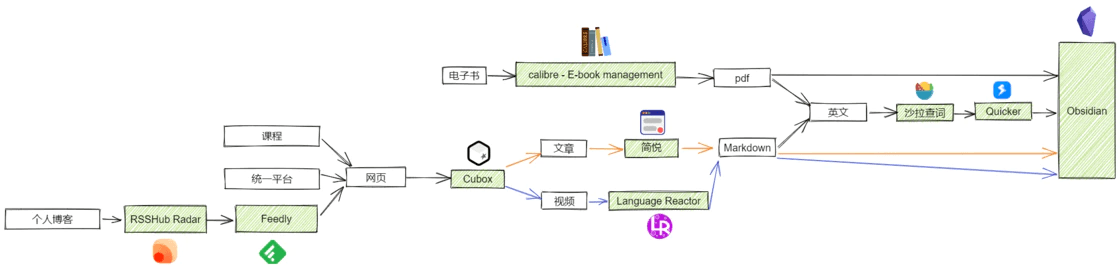
处理完文本类的信息后,我们还得思考一下怎么处理多媒体类的信息。此处的多媒体我特指英文视频,因为我没有用播客或录音学习的习惯,而且我已经基本不看中文教程了。现在很多国外名校公开课都是以视频的形式,如果能对视频进行做笔记会不会有帮助呢?不知道大家有没这样的想法,就是如果能把老师上课讲的内容转换成文本就好了,因为平时学习时我们看书的速度往往会比老师讲课的速度快。刚好 Language Reactor 这个软件可以将油管和网飞内视频的字幕导出来,同时附上中文翻译。
我们可以把 Language Reactor 导出的字幕复制到 Obsidian 里面作为文章来读。除了出于学习的需求,也可以在平时看油管的视频时打开这个插件,这个插件可以同时显示中英文字幕,并且可以单击选中英文字幕中你认为生僻的单词后显示单词释义。
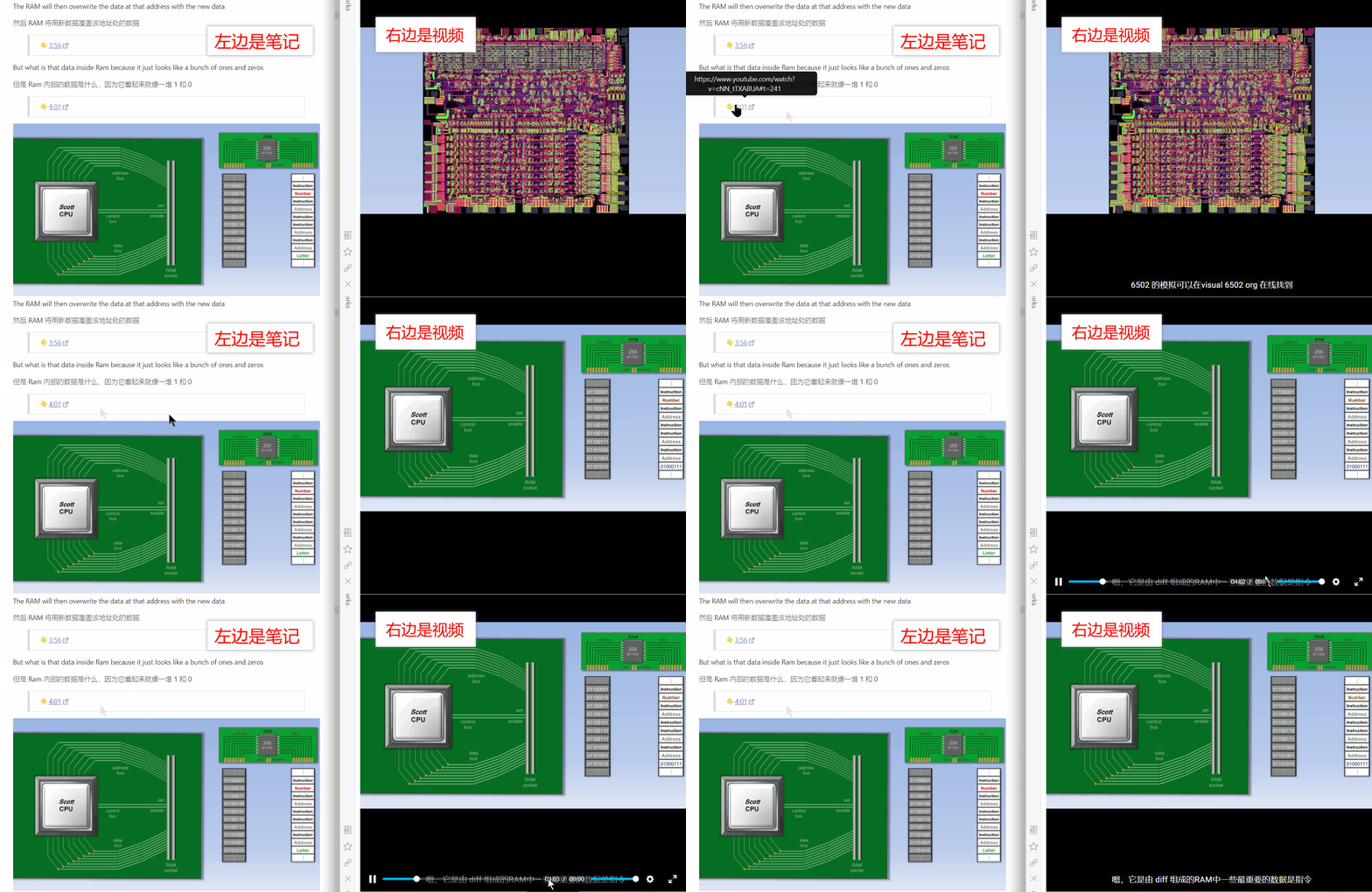
但阅读文本对于一些抽象的知识点来说并不是效率最高的学习方式。俗话说,一图胜千言,能不能将某一段知识点的文本和对应的图片甚至视频画面操作联系起来呢?我在浏览 Obsidian 的插件市场时,发现了一个叫 Media Extended 的插件,这个插件可以在你的笔记里添加跳转到视频指定时间进度的链接,相当于把你的笔记和视频连接起来了!这刚好可以和我上文提到的生成视频中英文字幕搭配起来,即每一句字幕对应一个时间,并且能根据时间点跳转到视频的指定进度,如此一来如果需要在文章中展示记录了操作过程的视频的话,就不需要自己去截取对应的视频片段,而是直接在文章内就能跳转!
Obsidian 里还有一个很强大的插件,叫 Annotator,它可以实现笔记内跳转到 pdf 原文
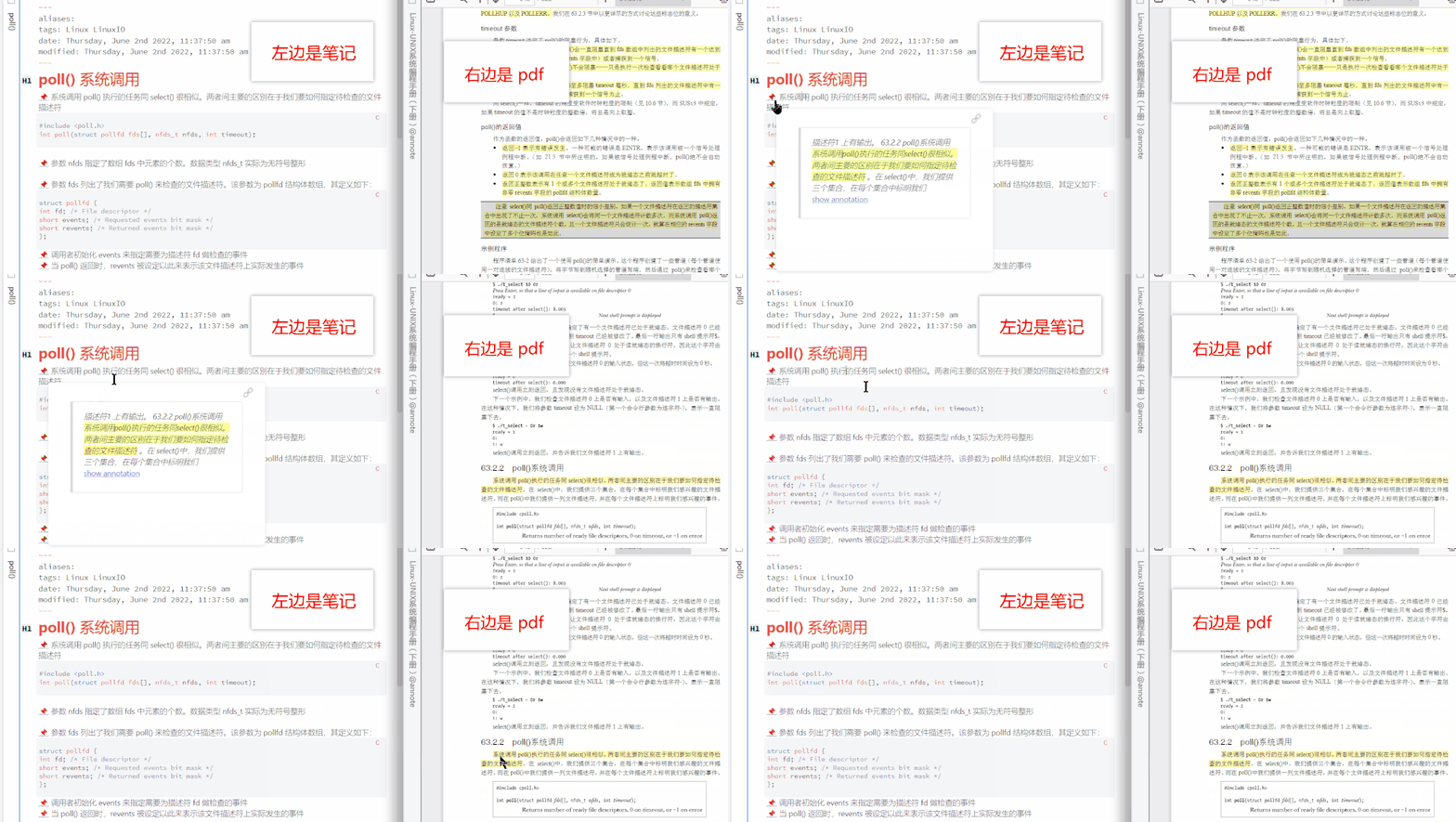
现在,使用 Obsidian 自带的双链功能,可以实现笔记间相互跳转,结合上述两个插件,可以实现笔记到多媒体的跳转,信息的处理过程已经完备。一般我们学习的过程相当于上山和下山,刚学的时候就好像上山,很陌生、吃力,所谓学而时习之,复习或练习的过程就像下山,没有陌生感,不见得轻松,但非走不可。那么如何把复习这一过程纳入工作流的环节里呢?
信息的回顾 #
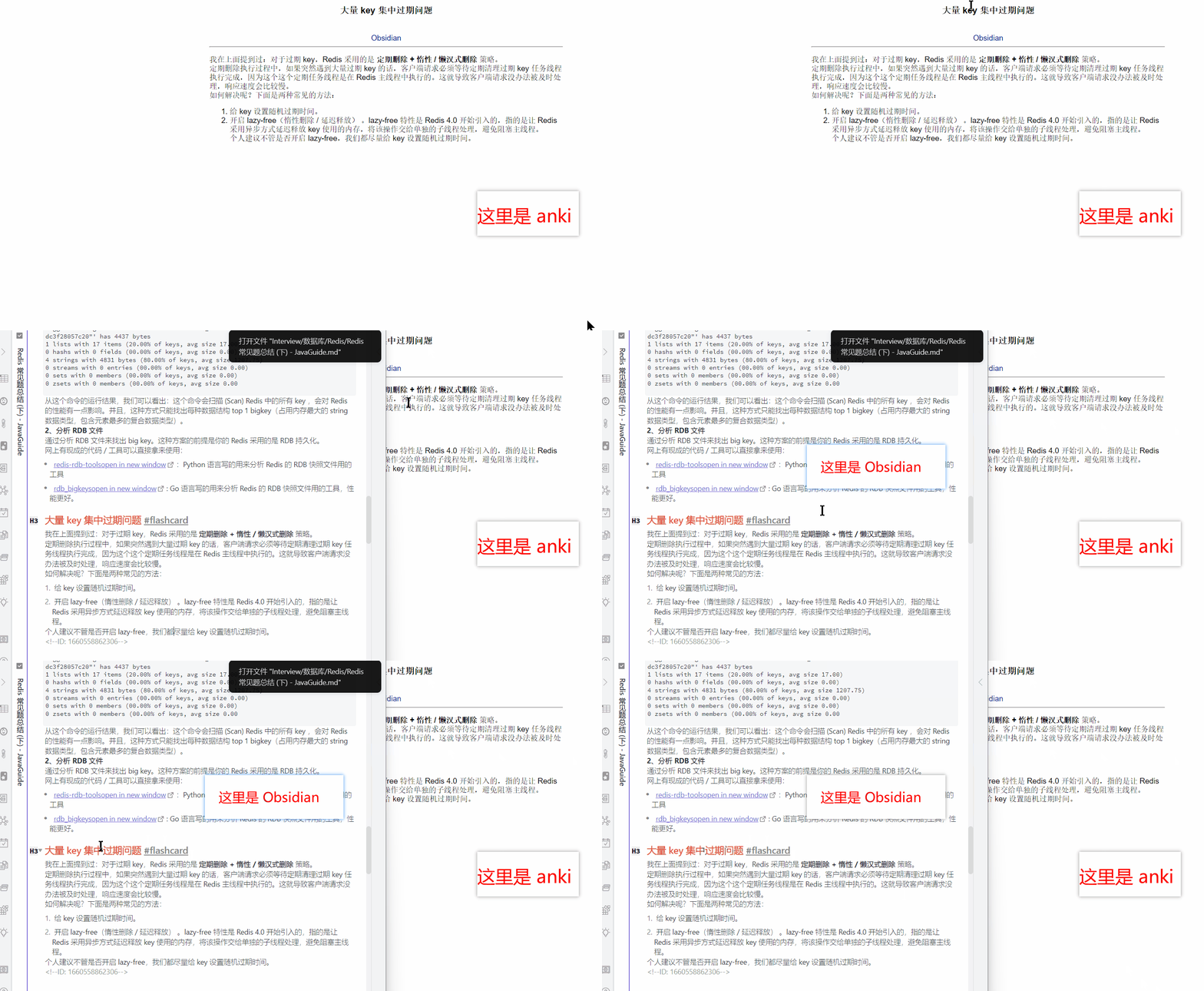
Obsidian 内已经有一个连接 Anki 的插件,Anki 就是大名鼎鼎的、基于间隔重复的记忆软件。使用该插件可以截取笔记的片段导出到 Anki 并变成一张卡片,卡片内也有跳转回笔记原文的链接
总结 #
这个工作流是在我这两年业余时间学习时所慢慢形成的,在学习过程中因为对一些重复性的过程而感到厌倦,正是这种厌倦产生了某种特定的需求,恰好在平时网上冲浪时了解到的一些工具满足了我这些需求。不要为了虚无的满足感而将工具强行拼凑到自己的工作流中,人生苦短,做实事最紧要。
btw,此篇文章是讲解工作流的演化思路,如果对此工作流的实现细节感兴趣,建议阅读完本文后再按顺序阅读以下文章
本文由 简悦 SimpRead 转码, 原文地址 tmp.bearblog.dev
I’m not wanted by the FBI, nor am I worried about my ISP watching me, and I don’t care about Google k……
21 Nov, 2022
I’m not wanted by the FBI, nor am I worried about my ISP watching me, and I don’t care about Google knowing what I search for. What I am worried about is crazy people on the internet I might accidentally piss off, so I don’t want to be easy to stalk. I’m also lazy, so I try to balance the effort and stalker risk to get the best bang for the buck. Described in this post are some things I do to be a bit harder to stalk.
Fake names #
Often when registering accounts the first and last names are optional, in those cases just skip them.
Where names are mandatory, I generate them with for example this random name generator. I usually use the settings: First name only, avoid rare, only relevant countries, and randomize surname (but I try to switch it up sometimes.)
I want the name to sound legit (so maybe not John Doe) but still be common and give many hits on Google, this makes it more annoying to try to look me up. John Doe works if I don’t care if they know it’s not my real name, but I try to be inconsistent and don’t use the same name for many accounts.
Random usernames #
I don’t want people to just Google my username and find my users on all other services. So what I do is randomize 1 to 3 words, maybe append a random year at the end of it, use leet speak sometimes, and sometimes use some username generator.
# Get a random word
shuf -n 1 /usr/share/dict/words
Switch it up and don’t be consistent.
Masked emails #
Don’t use the same email on multiple sites. Even if it’s often not shown publicly, sites get hacked and if you use firstname.lastname@gmail.com for your PornHub account it won’t feel great.
If you’re using the same email on multiple sites one can connect your different usernames. Finding database dumps of hacked sites with emails and usernames isn’t hard, and many people collect them for exactly this reason.
It’s tedious to manually create new email accounts for every service, but luckily there are services that can help us with it:
- Firefox Relay (5 free, ~12 USD/year for unlimited)
- Fastmail masked emails (unlimited for 30 USD/year)
- iCloud+ Hide My Email (unlimited for 0.99 USD/month)
With these services, I get something like “aliases” unique to a service. So I still have only one inbox (I only use Fastmail), but I get multiple email addresses connected to it. That means I can have a unique email registered at each website/app I register at but need to monitor only one email inbox.
For throwaway accounts I use temporary email services:
- 10minutemail
- Mailinator
- … and many others, just search for “temporary email” and you’ll get many hits.
The downside with temporary emails is that they’re blocked on many services, and there is no password to access the inbox so don’t use it for anything sensitive (anyone could do a password reset if you use it for an account somewhere, for example.)
Unique passwords #
Don’t use the same password on multiple sites, not only is it terrible from a security point of view but it’s also bad from a privacy perspective.
As I mentioned in the section about emails, sites get hacked. If you use the same password (but different usernames and emails) on different sites people can figure out the accounts belong to the same person if it’s leaked. And yes, this technique is used in the wild.
Use a password manager, 1Password is an excellent choice and it’s what I use. 1Password integrates with Fastmail’s Masked Emails so I can generate both email and password on the fly when signing up on a website.
Avatars/profile pictures #
There is a technique called “reverse image search” which means you search for an image and Google (or Bing, or Yandex, or whatever you use) shows you all other places the same (or similar) image is used. By doing a reverse image search on a profile picture, people can see other places where you use the same image.
If possible, I don’t use any profile picture or avatar, or use the default one. If I for some reason need or want a profile picture, I tend to generate one with:
- ThisPersonDoesNotExist, ThisCatDoesNotExist, or similar services
- Dall-E (generates images based on a prompt I give it)
Sometimes I find images by searching for something “random” on Google or similar, but I try to be mindful of copyright and never use a picture of a real person.
Multiple accounts #
Sometimes I use multiple accounts for the same service if possible (e.g. multiple Reddit/Discord accounts for different purposes.) I do this to make it harder for people to profile me.
To avoid having to log in and out when switching accounts, I use Firefox containers, that way I can be logged in to different accounts in different tabs. In some cases I use Chrome profiles but that’s a lot more work when using more than a few accounts.
Deleting comments #
I usually delete comments, threads, or other content I put up on the internet after it has served its purpose. That means for example deleting my Reddit comments after a month or two, keeping my email inbox near empty (in case it gets hacked), deleting old accounts, and similar things.
To some extent, I feel a bit bad about this. Comments I make might be useful for people in the future, but hopefully I can share some useful knowledge on this blog to compensate.
Things I usually don’t worry about #
There are more things one can do that I don’t feel the need to, but I figured I might as well mention some common ones:
- Temporary credit cards
- With privacy.com, Revolut, Klarna, and similar services one can generate virtual credit cards. This is mostly for when you don’t trust the website owner or the payment provider.
- Tor, Tails, surfing from an open WiFi, VPN, encrypted emails, etc
- These things are usually outside my threat model. They might be useful if you worry about your ISP watching you or someone wiretapping your network. But honestly, you’re probably not that interesting. Sometimes I use Tor or VPNs when traveling for example, but not on a day-to-day basis.
- Spelling/grammar/phrasing
- If there are words you often misspell, people can Google it to find other sources where you make the same error (if it’s uncommon enough) and potentially identify your other accounts. Use spell checking and maybe Grammarly or similar to minimize this risk, but I tend not to worry about this too much.
- Telemetry/tracking
- I don’t worry much about metrics in VS Code, the Chrome browser, or general website tracking (though I do use an ad blocker.) That’s not the kind of privacy I feel threatened by. It’s often annoying from a performance point of view though so I tend to opt out anyway.
Follow my blog: #
or RSS